QuickDock快启坞

· Windows 10 / 11 · MIT

Everything you build with,
in one window

Resource tree, command palette, clipboard, runtime management, a downloader, screenshots and window tiling, SSH terminal, AI assistant. One installer, no admin rights, data stays on your machine.

  • < 50 MB installer
  • 0 admin rights
  • 30+ runtimes
  • MIT open source
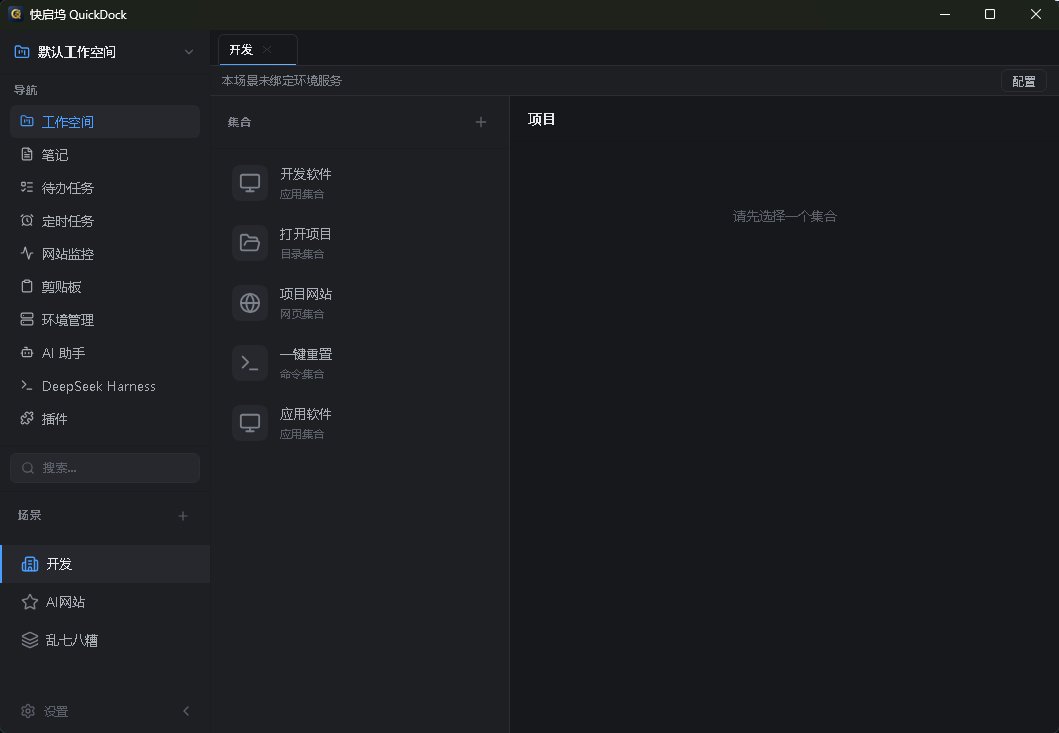
QuickDock main window: navigation, collections and items
01

Three panes, one working day

Navigation on the left, collections in the middle, items on the right. The tree has four levels, and an item can be a folder, a file, a URL, a command, an app, or a shortcut with arguments.

Resources

Where things live is up to you

Workspaces separate contexts, scenarios are different slices of the same resources, collections group by purpose. Every level can be dragged into order.

  • Four levels: workspace → scenario → collection → item
  • FTS5 full-text search; matches Chinese and English alike
  • Commands and URLs accept {date} {time} {clipboard}, expanded on open
Main window: navigation, collections, items
Runtimes

Runtimes, all under your user folder

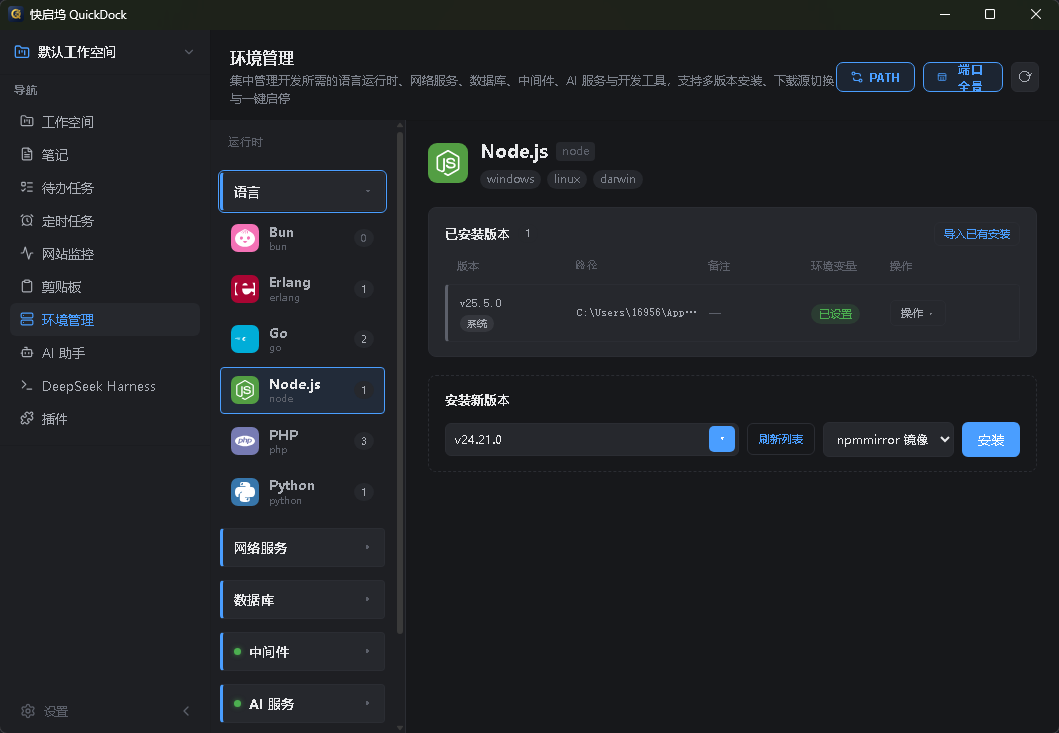
Languages, databases, middleware, web servers, dev tools — as many versions as you want. Switching changes one environment variable: no registry writes, no system PATH.

  • Install progress streamed line by line; mirrors switchable with fallback
  • Nginx, Apache and Caddy run their *-t check before starting
  • Service logs, web console and port overview on one page
Runtimes: groups on the left, versions on the right
Plugins

Plugins run sandboxed, permissions are declared

Three runtimes: plain front-end, embedded JS sandbox, separate process. Whatever a plugin needs has to be declared in plugin.json; anything undeclared is refused.

  • 34 host APIs covering files, network, clipboard, processes and crypto
  • Native plugins are statically audited at install time; manifest mismatches are flagged
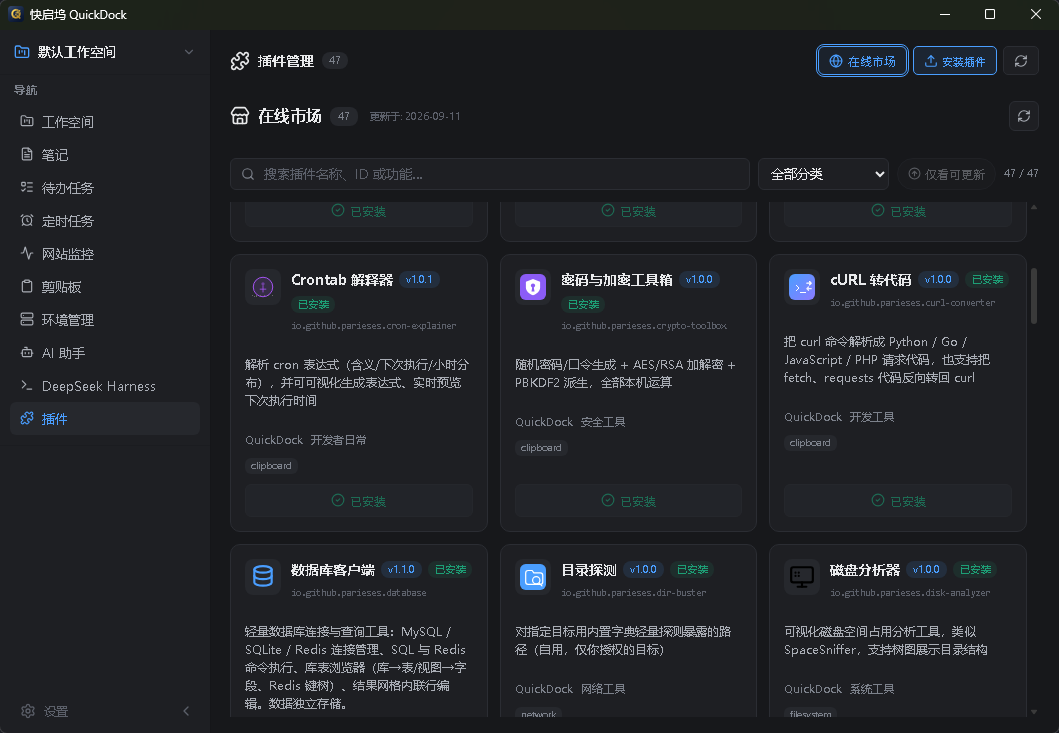
  • Official plugins install and update from the built-in marketplace
Plugin marketplace: categories, search, installed markers
02

The dozen tools you'd otherwise open separately

None of them is remarkable on its own. The difference is that they share one window and one set of hotkeys, so taking a screenshot or glancing at a log doesn't mean launching another app.

Command palette Ctrl K
Searches projects, notes, todos, apps, files and plugin commands at once, grouped by source; file results preview inside the panel. Paste a URL and it offers to save it as a project.
Clipboard history Ctrl `
Text, images and files are all recorded. Images and files are types of their own; URLs, emails, JSON and code are classified on write, so a tag reaches the whole history.
Screenshot F1
A layered native window acts as the overlay: selecting, annotating, color picking, numbered markers, copying and pinning all happen inside it, no second window.
Window tiling Ctrl Alt W
15 snap hotkeys plus a 3×3 overlay you click once. It doesn't take over Win + arrow keys.
Quick notes Ctrl Alt N
A tree of Markdown notes, autosaved, hidden as soon as it loses focus. Ask the AI from the same float window.
Todos
List and kanban views, subtasks, tags, repeat rules, due reminders, plus a pomodoro timer.
Site monitor
Four probe types — HTTP / TCP port / local process / custom command — with status codes, response time and SSL expiry. Pushes to the desktop or a webhook when a target flips state.
Scheduled tasks
Open an app, folder or URL, run a command, send an HTTP request. Once, every N minutes, daily, weekly.
SSH terminal Ctrl Alt S
Tabbed sessions, SFTP, host key trust, batch execution across hosts. An AI sidebar docks on the right.
Git panel
SourceTree-style: branches, tags and remotes, stashes, file history and blame, amend, cherry-pick, branch comparison and side-by-side diff.
File search
A dedicated page backed by Everything: install guidance when it is missing, one-click start when it is not running; queries take Everything syntax directly, results sort, multi-select for copying paths, and files preview on the right.
Downloader
aria2 under the hood: links, magnets, torrents and Metalink in one list, with status tabs, batch actions, a seven-tab detail dialog, speed charts and a pre-flight space check. Per-task save folders, file-named sub-folders, a disk guard and cross-machine resume import all live in settings.
Log tail
tail -f on any local file. Realigns when the file rotates or is rewritten in place; pausable, with highlight filters.
Dashboard
A date bar with the lunar date, solar terms and the day's traditional do's and don'ts, plus local weather. Eight cards hold recent items, the file shelf, todos, mail verification codes, ports, resident services, Git and AI usage — clicking a row lands on that item. City search accepts provinces, abbreviations and both languages, resolving a province to its capital; mail cards open the original message.
Notification center
Monitor outages, scheduled task results, mail verification codes and finished AI answers land in one bell. Click through to the monitor, the task or the conversation.
Data directory migration
Move the whole data directory, installed runtimes included, to another drive; environment variables are rewritten. Useful when C: runs out.
Local dev sites
Bind a custom domain to a project and issue an HTTPS certificate automatically. Listens on no port of its own.
WebDAV sync
Full JSON export and restore, versioned snapshots, any WebDAV server.

03

What you can install

Everything under your user folder, portable by default, versions coexist. Uninstalling removes the program, never your projects or models.

Languages
Node.jsGoPHPPythonBunErlangJDK
Web servers
NginxCaddyApacheTraefikFTPWebDAV
Databases
MySQLMariaDBPostgreSQLMongoDB
Middleware
RedisMemcachedMinIORabbitMQ
Dev tools
GitComposerFFmpegMailpitfrpcGitHub CLImkcertaria2
AI services
Ollamabuilt-in MCP :9230

How versions install

Mirrors are switchable, and the address accepts {version} {os} {arch} placeholders. When one source fails the next is tried, with progress streamed back live.

How services are managed

Start, stop and restart from the list. Save a config and services like Nginx validate before reloading — a syntax error stops there instead of taking down a running service.

Does it touch the system

No registry writes, no changes to system PATH, no admin prompt. Delete the folder and it is gone, with nothing left behind.

04

Configure a model once, use it in four places

The chat page, the SSH sidebar, clipboard entries and the notes window share one model profile.

Models and chat

OpenAI, DeepSeek, Kimi, Qwen, Ollama, Azure, and any compatible endpoint.

  • Enter the base URL and key, then pull that endpoint's model list in one click instead of copying names by hand
  • SSE streaming, with the reasoning trace collapsed by default
  • Math renders through KaTeX, diagrams through Mermaid, code blocks get highlighting; right-click a diagram or formula to copy it as an image
  • Switch to another page while an answer is generating; it keeps going and is waiting where you left it
  • Usage stats cover every entry point, split by model and surface, and are labelled as an estimate rather than a bill
  • API keys are encrypted with Windows DPAPI; the front end never sees the ciphertext

AI in the terminal

The SSH sidebar turns what you're looking at into commands you can run.

  • Select terminal output, right-click, ask — the selection alone becomes the context
  • The screen is attached only when you mention it; otherwise it isn't sent, which saves tokens and avoids misleading the model
  • On production hosts the default is read-only probing; write commands must state their blast radius
  • rm -rf, mkfs and DROP TABLE get a fill-in button only, never a run button
  • Running on production asks twice; fill-in never sends a newline
  • Switching sessions clears the context, so machine A's screen never follows you to machine B

Local capabilities for agents

A built-in MCP server at http://127.0.0.1:9230/mcp.

  • Tools are split into three permission tiers; read-only and low-risk writes are on by default
  • Read-only covers runtime status, project search, todos, notes, clipboard, ports, logs and crash records
  • Low-risk writes start and stop services, open projects, create todos and notes
  • Killing processes and running system commands have to be enabled separately in the runtimes page
  • Starts and stops with the main process; gone when the app quits

DeepSeek Harness

A complete agent coding surface in a native window: tools, files, terminal, sessions.

  • Detects node, npx and dsh and installs whatever is missing, a portable Node included
  • Runs in its own native window; closing the window leaves the service running, and reopening returns to it
  • Fixed port 3080, falling back to a random port only when an unrelated process holds it
  • Every step — download, extract, npm install — is logged
05

What changed recently

Newest first, expand for detail. Older versions live in GitHub Releases.

Safer downloads, long-running fixes, and smoother AI chat switching
  • Downloads now verify integrity: official hashes are checked when available, executables are checked by file signature, and HTTPS-to-HTTP downgrades or suspicious redirects are blocked — a mirror can no longer quietly install a replaced binary as the official build. Ollama upgrades stop the service and wait for the port to free before an atomic directory swap, with rollback on failure. The same runtime can no longer be installed from two pages at once, installs can be cancelled, extraction limits count real bytes written, and incomplete installs are no longer treated as installed. Stopping a service now re-checks the port instead of always reporting success.
  • Script tasks fix several ways a run could hang: a single huge output line no longer blocks forever, cancellations and timeouts have a bounded fallback, dependency-install logs are kept separately instead of being cleared when the run starts, and import paths plus archive entry/size limits are validated. AI self-healing after failed scheduled runs is now throttled to once per 30 minutes per script. When a trigger port is taken, the toast shows the port actually used.
  • Long AI tasks no longer end early just because cached tokens were counted as spend — the budget now counts only genuinely new input and output. The task list settles and persists as soon as an answer finishes, so refreshing no longer brings back a spinning step. Switching chats while a task is running no longer freezes or ignores clicks, and a chat-shaped skeleton placeholder keeps the transition consistent with page navigation. Stop now always returns instead of killing the process and hanging.
  • AI safety boundaries are tighter: approvals use a host-generated key so duplicate call IDs cannot cross wires, secret-file detection uses the real path instead of a user-editable name, and a broken profile or knowledge-base config can no longer overwrite existing API keys with empty values. Injecting a message while running goes through an interface that reports failures properly.
  • Notes and knowledge base: renaming a folder no longer rewrites wiki links pointing to a document with the same name; note saving updates the search index incrementally so typing stays fast as a library grows; partial vector failures now show "partially indexed" with all actions still available instead of being stuck on "indexing"; full-width queries match, moving a file to another library actually switches it, and stopping an index takes effect immediately.
  • The new and refresh icons on the dashboard's script card sit on the right again instead of in the middle.
v0.0.56 2026-11-24 Script tasks arrive: run JS, Python, Go and PHP locally — and let AI write them
  • A new Script tasks page lets you create Python, JavaScript, Shell, Go and PHP scripts, edit their code and files, and read logs right in the app. Run them by hand, on a schedule, when a file changes, or over local HTTP. Concurrent runs of the same script are blocked, canceling a run kills its child processes, and history records exit code, duration and log output.
  • Dependencies follow the script: requirements.txt for Python, package.json for Node, go.mod for Go and composer.json for PHP are installed automatically on first run and can be reinstalled in one click. Interpreters resolve in order — the one set on the script, a runtime installed in Environment management, then system PATH — so venvs and portable Go/PHP work without extra setup.
  • AI can now create a script and write its code plus dependency files in one go, so complex scripts no longer need manual copying. Writing files and running a script each need approval, running also requires the script's own "allow MCP" flag, and delete/rename are intentionally not exposed.
  • The dashboard header gained New note / New AI task / New script shortcuts, plus a script card that puts failures first, lists only the most recent runs, and jumps straight to the script you click. It refreshes from events the moment a run finishes.
  • Scheduled tasks gained a Run script action: pick an existing script from a dropdown and it runs synchronously at the scheduled time, with status and summary recorded in task history. Renaming a script does not break the task.
  • Environment's update overview no longer hammers upstream sources: version lists are cached in memory and on disk, with stale entries refreshed in the background, so hitting an anonymous rate limit can no longer make outdated built-in lists look like the latest release. When the code editor engine fails to load it now falls back to a plain text area that still saves, instead of leaving an empty pane.
v0.0.55 2026-11-23 Full UI refresh, more entry points, and a batch of “nothing happened” fixes
  • Visual overhaul: consistent overlays, selection states, layering and icons — four shared components replace the per-page copies
  • Todos gain a four-quadrant view; completing a recurring task can apply to “this one” or “all”, and you can snooze it on the spot
  • Create notes and todos right from the command palette; save AI answers, notes and clipboard entries as a note, a todo, or into the knowledge base
  • Running a scheduled task by hand is now asynchronous: watch which step it is on and cancel it midway
  • Send the current log to AI for analysis in one click; SSH batch runs can export results, retry only the failed hosts, and test reachability of saved hosts
  • The PATH panel in Environment management toggles bin dirs per version; site setup is now a three-step wizard (directory → domain → certificate)
  • A batch of “failure treated as empty state” fixes: a failed lock-status read no longer says “disabled”, a failed note read never overwrites the original with an empty draft, and stale page requests no longer overwrite fresh content
v0.0.54 2026-11-22 Arrange your dashboard cards, steadier AI memory and long chats, more note links and MCP tools
  • The dashboard header has a new grid button: reorder cards, hide the ones you don't use, and restore defaults in one click — preferences stay on this machine. A readout whose refresh failed now says "load failed" instead of showing a stale number, ages past 5 minutes turn yellow and past 30 minutes red with a retry link, and clicking a readout lands on the overdue todo, down monitor or dirty repo itself. A new full-width "Up next" card collects upcoming todos and scheduled tasks by time, followed by real activity counts for the last 7 days. Header shortcuts create a todo or copy the latest verification code without switching pages first.
  • AI memory is now an evergreen set of sections — project baseline, hard rules, gotchas, facts, decisions — so one damaged file no longer wipes the whole thing and parallel sub-agents cannot collide on volume numbers. Follow-up questions no longer throw away the whole context prefix: the exact tool conversation sent with each prompt is saved and replayed byte-for-byte when rebuilding history. Session replay, tool ordering and compaction timing were stabilized too. The run tree now shows sub-agents as team-member cards with roles and an execution plan.
  • In a chat you can attach files from the "+" panel, paste or drop them, and have their contents injected by file type with a chip on your message. Long pastes collapse into a chip you can expand to read the full text, and the sources behind an answer collapse into a short link list.
  • Note links are easier to use: candidates are grouped by notes / todos / items and loaded on demand, backlinks show their source title instead of "deleted", renaming a note rewrites wiki references in other notes so links stop dangling, and newly created items become searchable immediately instead of waiting for the cache to expire.
  • MCP gained 23 read-only tools covering knowledge-base source chunks, notes and individual history versions, full clipboard search, cloud-drive listing and search, monitor logs, mailbox verification codes and credential-vault status. todo_update now changes only the fields you pass, and note_update can clear a body with an empty string. The vault still exposes status and random password generation only — no plaintext reads or writes.
  • Environment gained health probes and missing-version diagnostics: a process listening on no port is flagged, and a source missing one particular version is no longer mistaken for a dead source; failed steps in manifest imports now surface a warning instead of a false "success". Knowledge-base search finds single characters, plugin path fields are case-insensitive for permission checks, the downloader can explicitly clear its RPC secret, cloud-drive transfers have a stall guard, SSH SOCKS failures return standard error codes, and notification badges no longer overwrite each other under concurrency. A pass through all 18 navigation chapters fixed 75 usability defects.

All versions and release notes →

Download QuickDock

The installer and the portable build are the same executable, with no difference in features. It installs under your user profile and needs no admin rights.

· amd64 · Windows 10 1809+ / 11 Keep the default install path — in-place updates depend on it
Does it need admin rights?

No. The installer puts the program in %LOCALAPPDATA%\Programs\快启坞, and runtimes and data stay in your user folder — no registry writes, no UAC prompt. For the same reason, installing by hand into C:\Program Files breaks auto-update, because there is no write permission and you'd have to overwrite it manually.

Where is my data, and does it get uploaded?

In ~/.quickdock by default: the database, clipboard images, plugins and logs. Nothing syncs in the background; network requests only happen when you configure WebDAV or call an AI endpoint. If space runs short, move the whole directory to another drive under Settings → Storage & Sync.

Does uninstalling delete my data?

No. Uninstalling removes the program and its registry entry; ~/.quickdock stays. Reinstall and everything is where you left it. Delete the folder yourself once you're sure you don't need it.

Is macOS supported?

Each release ships darwin arm64 and amd64 builds, but development and testing happen on Windows, so coverage on macOS is incomplete — please file an issue if you hit something. There is no Developer ID signature yet, so the first launch has to be allowed in System Settings.